Enable Full Disk BitLocker Encryption On PCs Without TPM (Updated)
 BitLocker
was first introduced in Windows Vista Ultimate and Enterprise editions
as an encryption security feature for your local and portable drives
with BitLocker to Go. If you’re serious about keeping the data on your
local drive safe, I recommend enabling it – especially on laptops.
Here’s how to enable it.
BitLocker
was first introduced in Windows Vista Ultimate and Enterprise editions
as an encryption security feature for your local and portable drives
with BitLocker to Go. If you’re serious about keeping the data on your
local drive safe, I recommend enabling it – especially on laptops.
Here’s how to enable it.
Windows BitLocker Hardware Requirements
For BitLocker to work, you need a PC with a Trusted Platform Module (TPM). According to Microsoft:
A PC with a Trusted Platform Module (TPM), which is a special
microchip that supports advanced security features. If your PC was
manufactured with TPM version 1.2 or higher, BitLocker will store its
key in the TPM.
To turn on BitLocker Drive Encryption on the operating system drive, your PC’s hard disk must:
If your system meets those requirements, you’ll have no problem
enabling BitLocker on your local drive. But, your computer might not
meet those requirements. Luckily there’s a workaround provided you’re
not running a Home version of Windows.
Does my PC have TPM?
To find out if your PC has a TPM, open Control Panel, then select BitLocker Drive Encryption > TPM Administration.
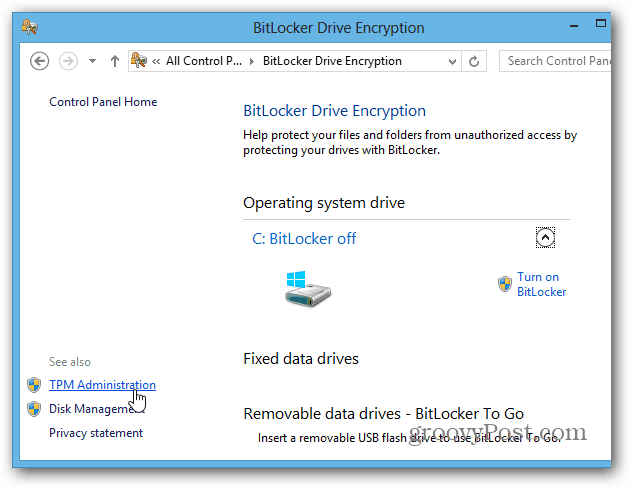
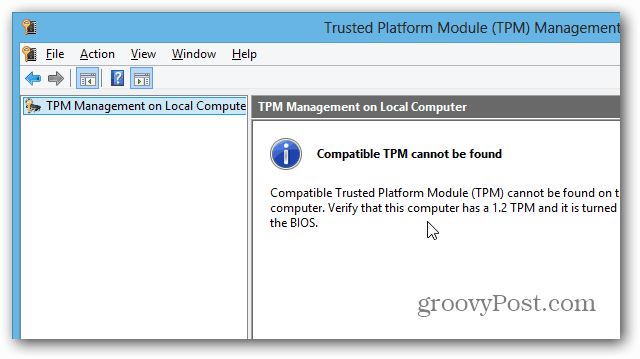
Then you’ll see if your system has TPM. In this case, my computer
doesn’t have it – but it might be possible to enable it in your system’s
BIOS. When dealing with a PCs BIOS, each system varies, so you might
need to refer to manufacturer documentation. But what if you don’t have
TPM enabled hardware?
Use BitLocker on Drives Without TPM
If you don’t want to deal with messing with your computer’s BIOS, or
waste time updating it, there’s an easy way to make BitLocker work
without TPM enabled hardware. Use the keyboard shortcut Windows Key + R
and type: gpedit.msc and hit Enter or click OK.

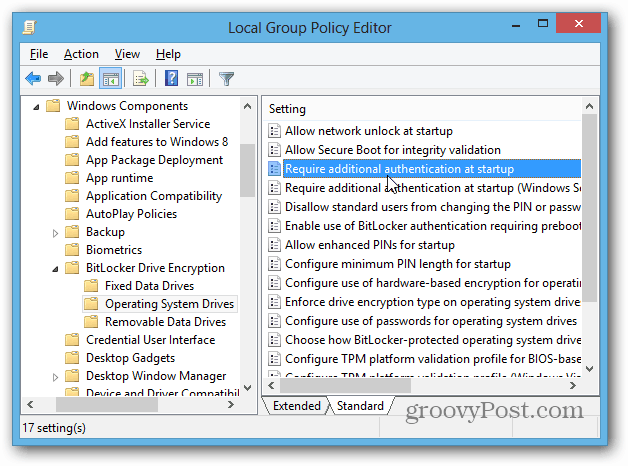
Now navigate to Local Computer Policy > Computer Configuration
> Administrative Templates > Windows Components > BitLocker
Drive Encryption > Operating System Drives. Then double click on
“Require Additional Authentication at Startup”.
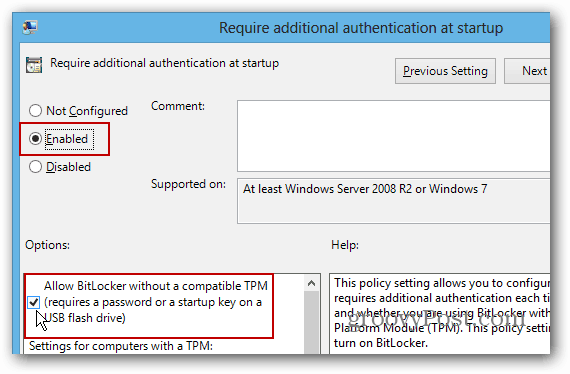
On the next screen select Enabled, and under Options check the box
“Allow BitLocker Without a Compatible TPM” and click OK and close out of
Group Policy Editor.
Turn on BitLocker
Now that you have that taken care of, there are a couple of ways to
enable BitLocker. Open Computer from the Desktop, right-click on your
local drive and select Turn on BitLocker.
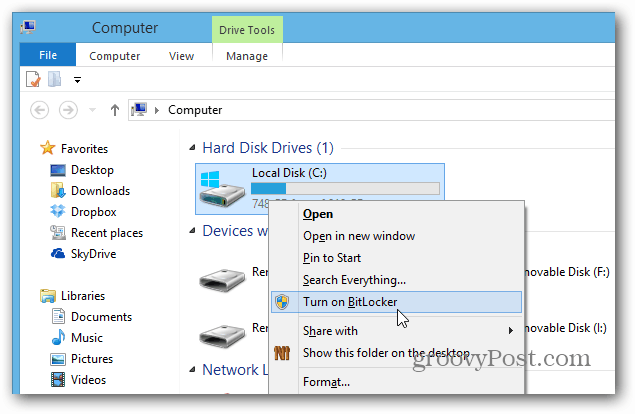
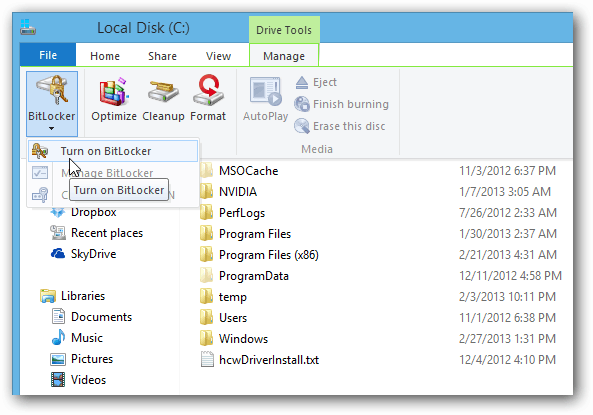
Or from the Explorer Ribbon you can turn it on under Drive Tools.
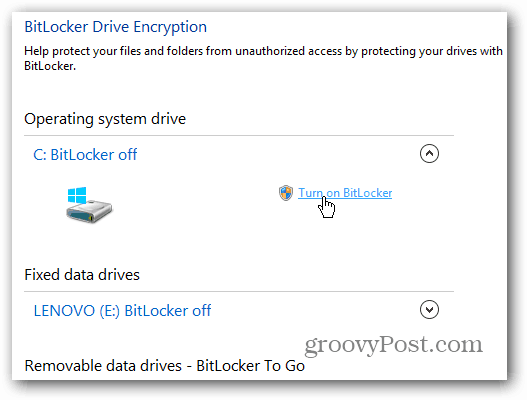
Now it’s just a matter of working through the BitLocker Drive Encryption Wizard.
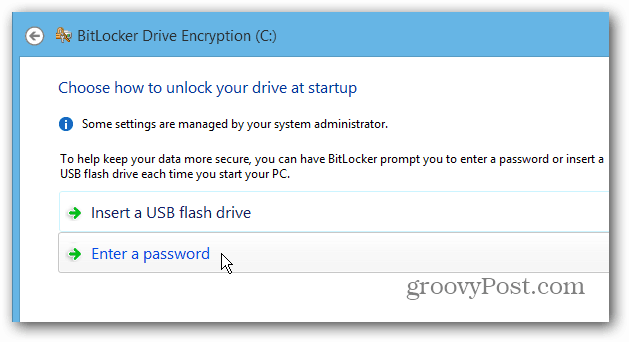
When you get to this point of the wizard, you need to decide if you
want to have a password or use a separate USB flash drive. I recommend
using a password since flash drives are easily lost.
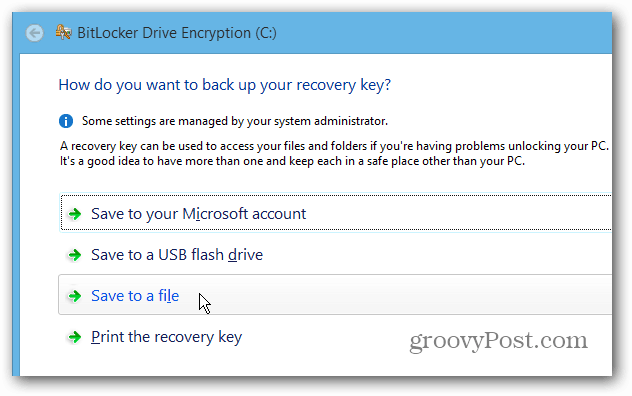
Saving BitLocker Recovery Key
Now you need to save your BitLocker Recovery Key in one or more of
the ways offered. The key can be used if you forget the password or
something goes wrong with your system. The cool thing is it allows you
to save in more than one way, including to your Microsoft Account.
Important! If you lose it, you’re out of luck for unlocking your
drive so be sure you save it in a safe location or better yet multiple
locations. Personally, I create a file and save it to my home server and
an external hard drive, and I save it to my Microsoft Account too.
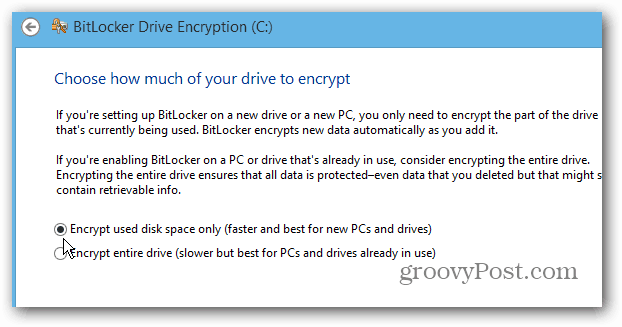
Another cool thing you can do with BitLocker is encrypt only the used
disk space, which makes the process much faster on new PCs and drives.
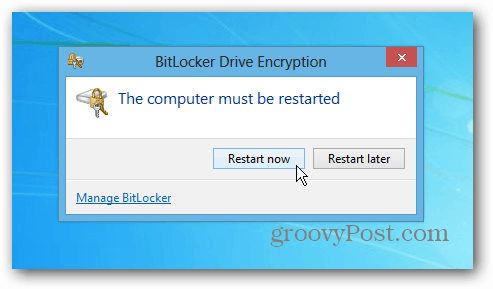
After completing the wizard, you’ll need to restart your computer.
Upon reboot, you’ll need to enter the password you set for BitLocker.
And, you’ll always need to type it in after the encryption is completed
to access your disk.

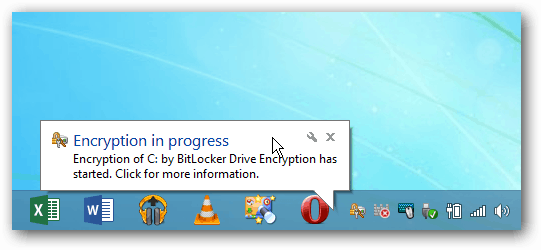
Log in to your computer and you’ll see Windows is encrypting your
local disk. The amount of time it takes will vary on each system, but
you don’t need to keep an eye on it…it’s going to take several hours in
most cases. Let it run overnight or all day while you’re at work.
إرسال تعليق